How to Make a Sticker from a Photo: Online, for FREE (No Sign-Up, No Software)
Make stickers from your favorite photos for FREE in minutes — no sign-up, no watermark, no software. Perfect for journalers, crafters, and DIY lovers!
5/1/20267 min read
Want to skip straight to the good stuff? Use the links below.
Jump To:
You found it — the one genuinely free way to make a sticker from a photo online without creating an account, downloading an app or hitting a paywall right when you're about to save (Guh, I HATE that!).
Most tools advertise "free" and then gate your download behind a subscription. MyFastSnaps doesn't do that. The tool lives in your browser, works in under a minute and costs exactly nothing. No email. No sign-up. No watermark. Nada.
Whether you're a journaler who wants custom book cover stickers for your reading log, or a crafter who needs photo labels for a scrapbook, a planner, or a DIY gift — this guide walks you through the short 'n easy process, plus a bunch of creative ways to use what you make.
What Is MyFastSnaps? {#what-is-myfastsnaps}
MyFastSnaps is a free, browser-based photo label tool that lets you upload any image and format it into a print-ready sticker or label — right from your phone or computer.
There's nothing to install. You don't need a Canva account, an Adobe subscription, or a Cricut machine. You just upload your photo, size it the way you want, and either download a print-ready file or send it straight to your printer.
It's especially popular with people who want to print multiple small photo labels on a single sheet — think a whole page of book cover stickers for a reading journal, or a sheet of custom photo labels for handmade gifts.
The short version: It's the fastest way to go from "I have this photo on my phone" to "I have a sticker in my hand."
What You'll Need {#what-youll-need}
Before you start, grab these three things:
1. Your photo. Any image works — a book cover you photographed, a picture of your pet, a screenshot of album art, a polaroid-style selfie. The higher the resolution, the crisper your sticker will print. Most modern smartphones shoot more than enough quality.
Create a dedicated folder for your favorite photos so you can find them quickly. You can import them easily, straight from the web template.
2. Sticker Paper? Nope. Label Sheets are where it's at! This is the only thing you'll buy. A pack of full-sheet printable sticker labels costs about $8-15 and will last you dozens of projects. Thrift shops are also a great spot to find label sheets!
A glossy finish gives you vivid, photo-quality results. Matte sticker labels are better if you want to write on your stickers afterward (great for reading journals where you might want to add a rating or note).
3. A printer. A standard home inkjet printer works perfectly. You don't need a photo printer, though one will give you even better color accuracy and higher DPI.
That's it. No cutting machine required — your finished stickers were cut before you even printed them. And the best part? You don't have to print the whole page at once. Print one or two at a time: the sheet can be run through the machine over and over until you've used them all up!
Step-by-Step: How to Make a Sticker from a Photo Online for Free {#step-by-step-make-your-sticker}
Here's how the whole process works from start to finish.
Step 1: Open the Tool
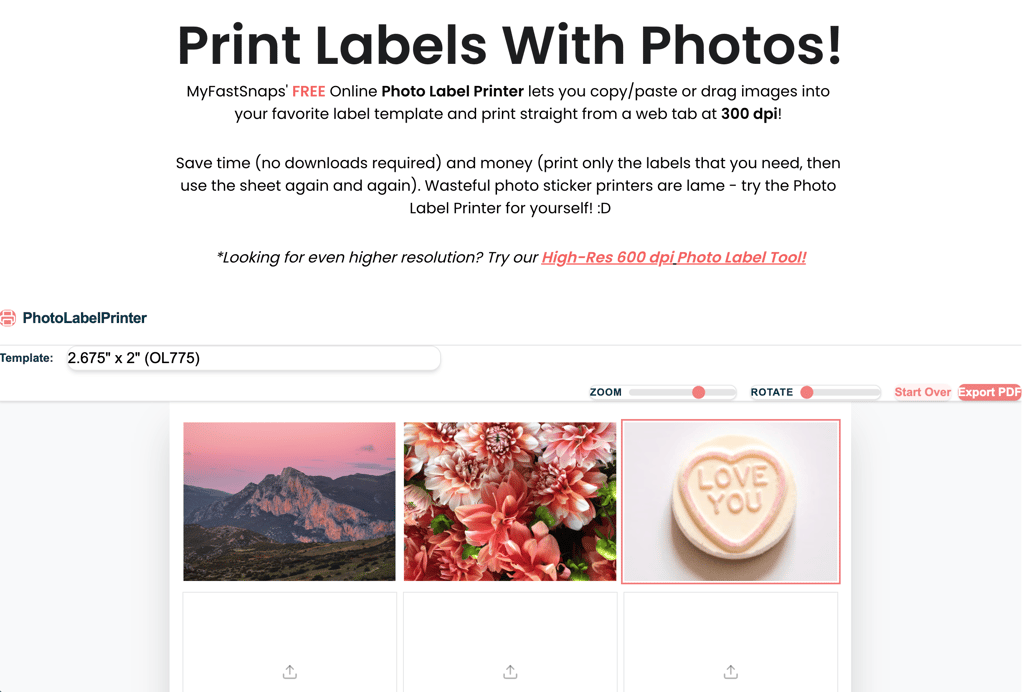
Go to MyFastSnaps.com/free-online-photo-label-printing. No log-in screen. No pop-up asking for your email. The tool loads and you're ready to go.
Step 3: Choose Your Label Size and Layout
MyFastSnaps is designed to work with popular label brands like Online Labels and Avery. You can select from standard label sheets by their template code. Then just select the label cell you want to print and drag, paste or upload your image into it.
Step 3: Upload Your Photo
Copy/paste from a browser, drag and drop from a desktop folder or click the upload button and select your image from your device. You can use a photo from your camera roll, screenshot or image file saved to your computer.
Step 4: Preview and Adjust
Before you print or download anything, you'll see a preview of exactly how your sticker sheet will look. Each image can be zoomed, rotated, cropped as desired. If your photo isn't centered the way you want, you can adjust the position too.
Step 5: Print or Download
Hit "Print to PDF" and a printable PDF will load in a separate web tab. Print directly from that web tab or save your pdf to print later.
Load the matching label sheet into your printer (always check which side is the printable side — usually the shinier one), hit print, and let it dry for 60 seconds before handling.
Then just peel and stick! No need for a Cricut or Silhouette: the label company did all the cutting for you. ;)
That's it. Start to finish: under five minutes.
For Journalers: Book Cover Stickers, Reading Logs & Visual Spreads {#for-journalers}
If you've spent any time on #ReadingJournal IG or BookTok, you already know what's happening: journalers are moving away from plain written logs and building visual reading trackers that feel more like scrapbooks than spreadsheets.
Photo stickers are a huge part of that shift — and MyFastSnaps is one of the cleanest ways to make them.
Book Cover Stickers for Your Reading Log
The most popular use is simple: photograph the cover of every book you finish (or screenshot it from Goodreads), run it through MyFastSnaps and print a sheet of miniature covers. Stick them into your reading journal as a visual log of everything you've read this year.
It's fast and ridiculously easy. A full page of tiny book covers side by side is immediately more engaging than a written list — and it's the kind of spread that gets saved and shared on Pinterest and Instagram.
Tip: Not sure of what size label to go with? Print your covers at 2:3 ratio — that's roughly the same ratio as most book covers. When in doubt, zoom out a little to print and then cut the label to size with scissors if you need to.
Reading Tracker Spreads
Use photo stickers to build a tracker you'll actually want to fill in. Print small images of each book on your TBR (to-be-read) list and stick them into a monthly spread. Check 'em off, cross 'em out or move them as you work through your list.
Bookmark Stickers
Print a favorite cover or a photo that reminds you of a book on a narrow sticker strip and stick it to cardstock. Laminate it if you want it to last. Instant custom bookmark that actually means something.
Journaling Spread Decoration
Beyond book covers, photo stickers can tie a whole journal spread together visually. Print a photo from the season you read the book, or an image that matches the book's vibe — a city skyline for an urban thriller, autumn leaves for a cozy fall read.
It adds a layer of personality that bullet points never can.
Looking for more detail? Check out our blog on book journaling ideas.
For Crafters: Scrapbooks, Planners, DIY Gifts & More {#for-crafters}
The same free tool works just as well outside the reading journal world. Crafters have been using MyFastSnaps for everything from memory keeping to handmade gift packaging.
Scrapbook Photo Labels
The classic. Print photos at label size and stick them directly into your scrapbook without printing full 4x6 photos for every page. You can fit 6, 9, or even 12 small photo stickers on a single journal page, giving your spreads more variety and your wallet a break.
Mix sizes — one larger focal image sticker surrounded by smaller supporting shots — for a layout that looks professionally designed without any design experience needed.
Planner Stickers and Memory Keeping
Weekly planning spreads are more fun to look back at when they have photos in them. Go through your photo roll and print small images from your week — a meal you loved, a dog park visit, a screenshot of a concert ticket — and stick them into your planner as visual markers. It turns a functional tool into a memory book.
Customized Gift Packaging
This is a sleeper hit use case. Print a photo label of the recipient, a shared memory or a meaningful image and stick it to a plain gift bag, a jar of homemade cookies - even a candle! It takes three minutes and elevates a simple gift into something that feels incredibly intentional.
Water Bottle and Laptop Stickers
Print your photos on glossy waterproof sticker labels (yes, that's a thing!) and you've got custom stickers that can go anywhere. A photo of your dog on your water bottle. A picture of your best friend on your laptop. Fan art of your favorite book cover on your Kindle case.
The key is using waterproof glossy sticker labels for anything that'll get wet or handled constantly — regular sticker labels will peel.
Junk Journaling
Junk journaling — building creative journals from found and recycled materials — has exploded in popularity. Photo stickers fit perfectly: print ephemera-style image strips, mini polaroids or vintage-look photos to layer into your pages alongside torn paper and washi tape.
Pro Tips for the Best Results {#pro-tips}
A few things that separate a good sticker from a great one:
Use the highest resolution image you have. The tool can work with low-res images, but small stickers especially need crisp detail. If you're photographing a book cover, do it in good lighting and use your phone's full resolution setting. The standard MyFastSnaps tool exports at 300dpi, but if you'd prefer 600dpi, try the High-Res Photo Label Tool!
Do a test print on regular paper first. Before you run your sticker labels through the printer, print on a plain sheet to make sure colors and print quality are what you expect. Sticker labels are cheap, but wasted sheets add up.
Let ink dry fully before using. Inkjet ink smears when wet. Wait 60 to 90 seconds after printing — or longer for glossy paper, which takes slightly more time to absorb ink.
Match paper finish to your project. Matte paper for journal spreads where you'll write on or near the sticker. Glossy for anything decorative, framed or on a water bottle. Clear sticker paper for a "printed directly on the surface" look..
What if my photo comes out blurry when printed? Blurriness almost always means the original image resolution was too low. Try to use photos that are at least 300 DPI at the size you're printing — most smartphone photos are fine. Avoid screenshots from low-resolution websites.
Ready to Try It?
Making a sticker from a photo online doesn't have to mean wading through paywalls, account sign-ups, and five-step tutorials just to download a watermarked file.
MyFastSnaps does one thing, does it well, and doesn't charge you for it. Open the page, upload your photo, and have a print-ready sticker in less time than it takes to brew your coffee.
Make your free photo sticker now →
Got more questions? Check out our FAQs.
Have a creative use for photo stickers we didn't mention? We'd love to hear it!